User Guide: Multi-Company in Odoo
One of Odoo’s major advantages is its ability to manage multiple companies within a single database. This can be extremely useful for organizations with subsidiaries or affiliates, as it allows them to maintain a centralized system while giving each company the flexibility to operate independently.
In this article, we’ll take a look at how to use Odoo’s multi-company feature and some of the benefits it can offer your business.
How do I use Odoo's Multi-Company feature?
To start, you'll need to create a new database for each company you want to include in your multi-company setup. You can do this from the "Create Database" page in the Odoo web interface. Once you have created all the databases, you will need to enable the multi-company feature in each one. This can be done from the "Settings" menu in the Odoo web interface.
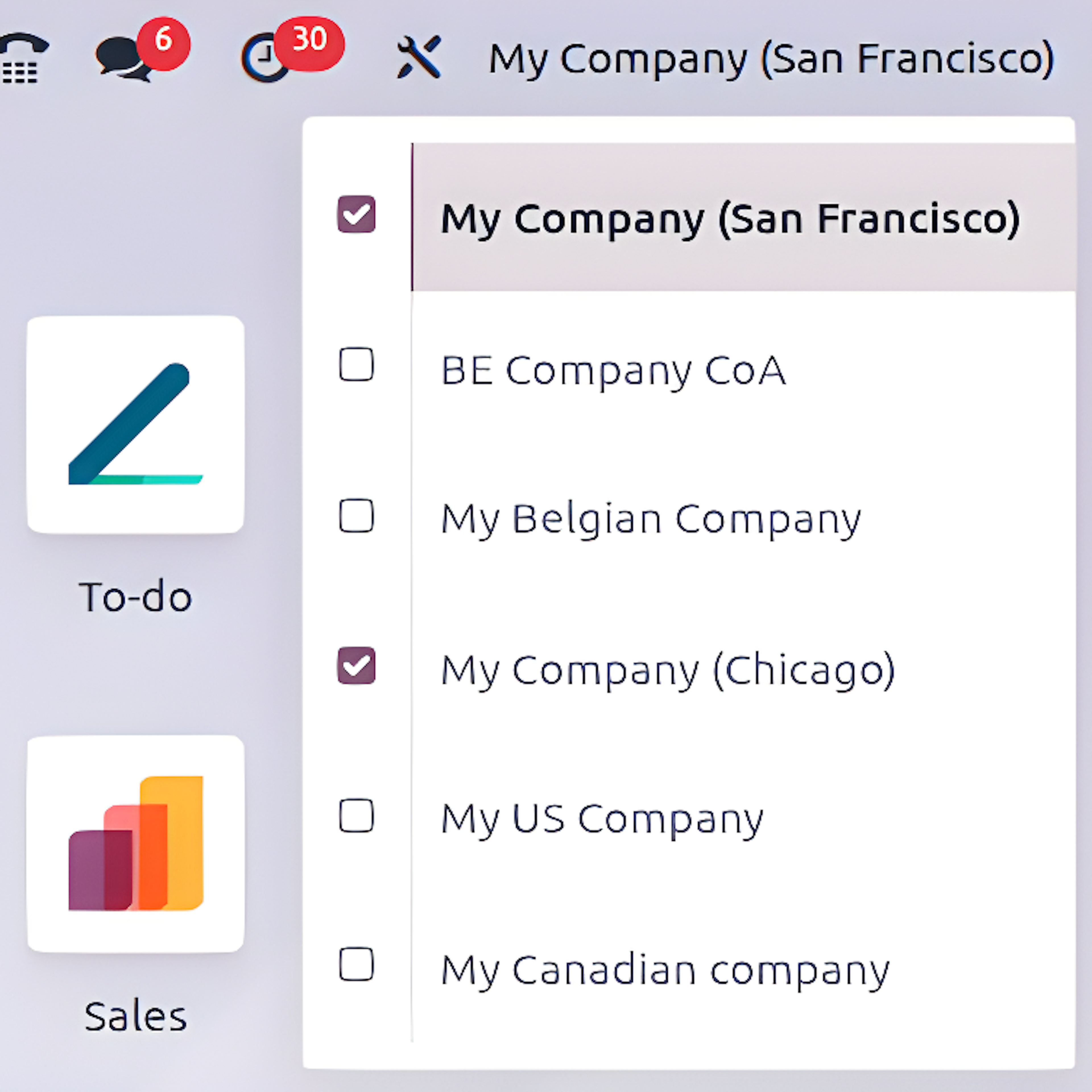
Once you've enabled the multi-company feature, you can add companies to your settings from the "Manage Companies" menu. Just click the "Create" button and enter the required information. To switch between companies, click the company name in the top bar of the screen; this will display the companies you use.
After adding all your companies, you'll need to assign users to each one, which can serve as a security measure. You can do this from the "Users" menu. Simply select the user you want to assign to a company, and then click the "Edit" button. From there, you can select the company the user should have access to from the "Company" dropdown menu.
Benefits of using Odoo's Multi-Company feature
Now that you've set up your multi-company account, you can start using it to your advantage.
One of the most useful things you can do is use different logos for each company. You can do this from the "Companies" menu. Simply select the company for which you want to change the logo and click the "Edit" button. From there, you can upload a new logo by clicking the "Upload Logo" button.
Another great way to take advantage of Odoo's multi-company feature is use different currencies for each company. You can do this from the "Companies" menu. Simply select the company for which you want to change the currency, and then click the "Edit" button. From there, you can select the new currency from the "Currency" drop-down menu.
Finally, you can apply different tax rates for each company. You can do this from the "Companies" menu. Simply select the company for which you want to change the tax rate and click the "Edit" button. From there, you can enter the new tax rate in the "Tax Rate" field.
As you can see, Odoo's multi-company software feature offers a host of benefits for businesses with multiple subsidiaries or branches. You can make your business more efficient and save money.
Discover what Odoo can do for your business.
An initial meeting to see if we're a good fit, followed by a demonstration tailored to your processes.
More posts like this
8-minute read
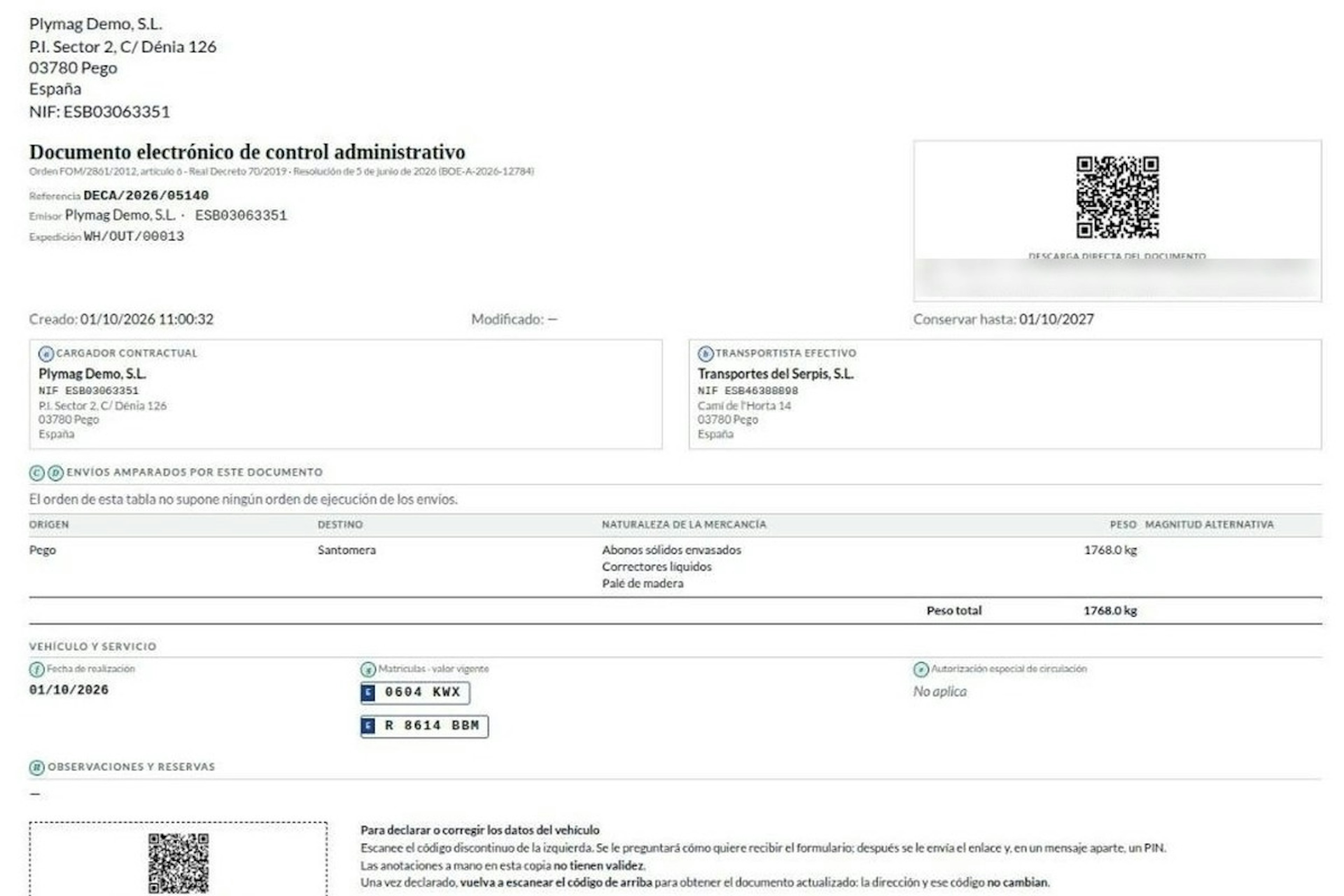
How the DeCA works in Odoo when the truck changes on the road: QR, secure link and PIN.
A breakdown, a different semi-trailer, a reservation about the load: this is how the DeCA is amended in Odoo during transport, with two QR codes, a link only the carrier receives and a six-digit PIN.
8-minute read
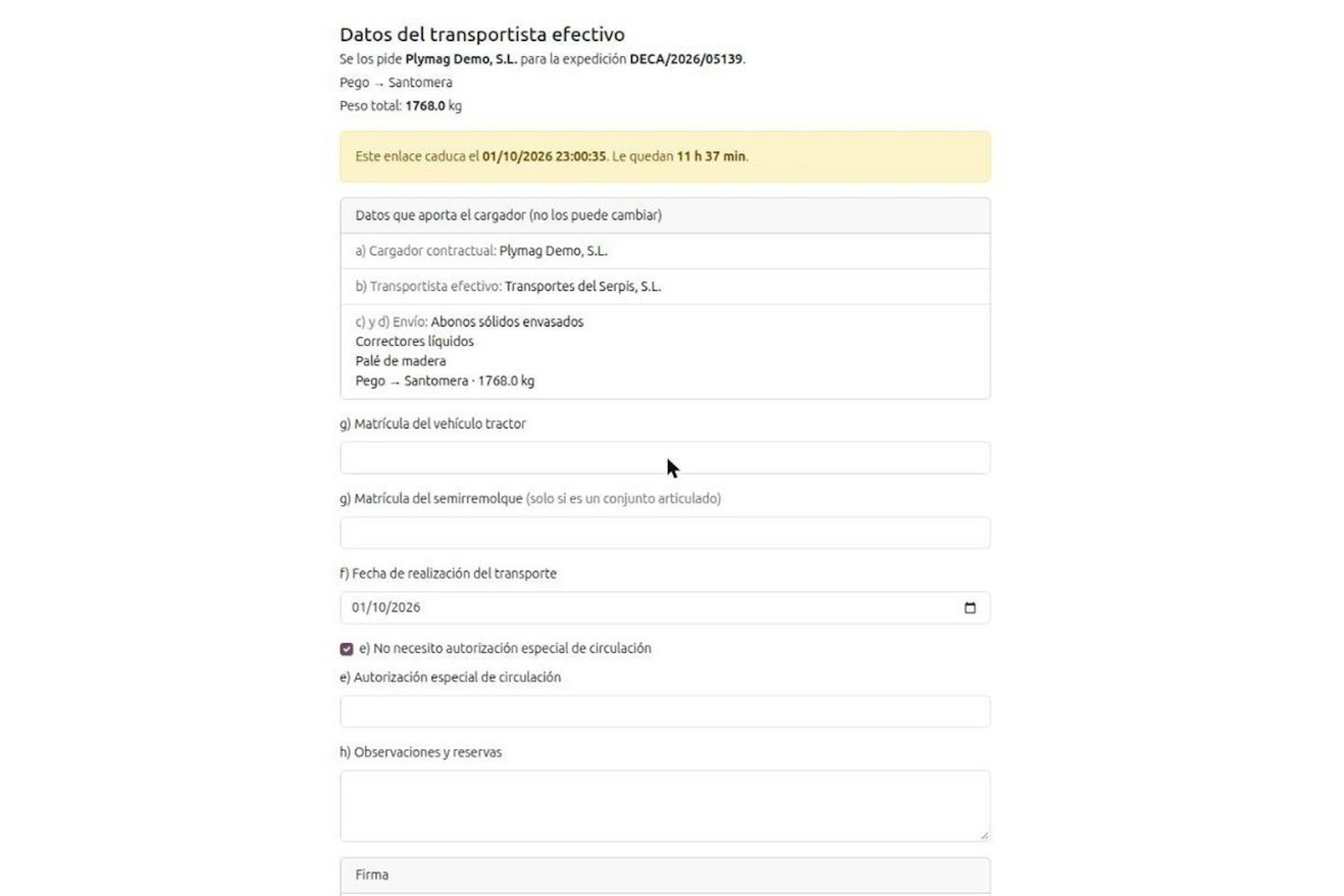
DeCA for transport companies with Odoo: you supply your data by link and issue it when you subcontract.
As the actual carrier, the DeCA binds you, but you will usually supply the special authorisation, date and plates through the link your client's Odoo sends you. When you subcontract, you will normally issue it from your own Odoo.
13-minute read
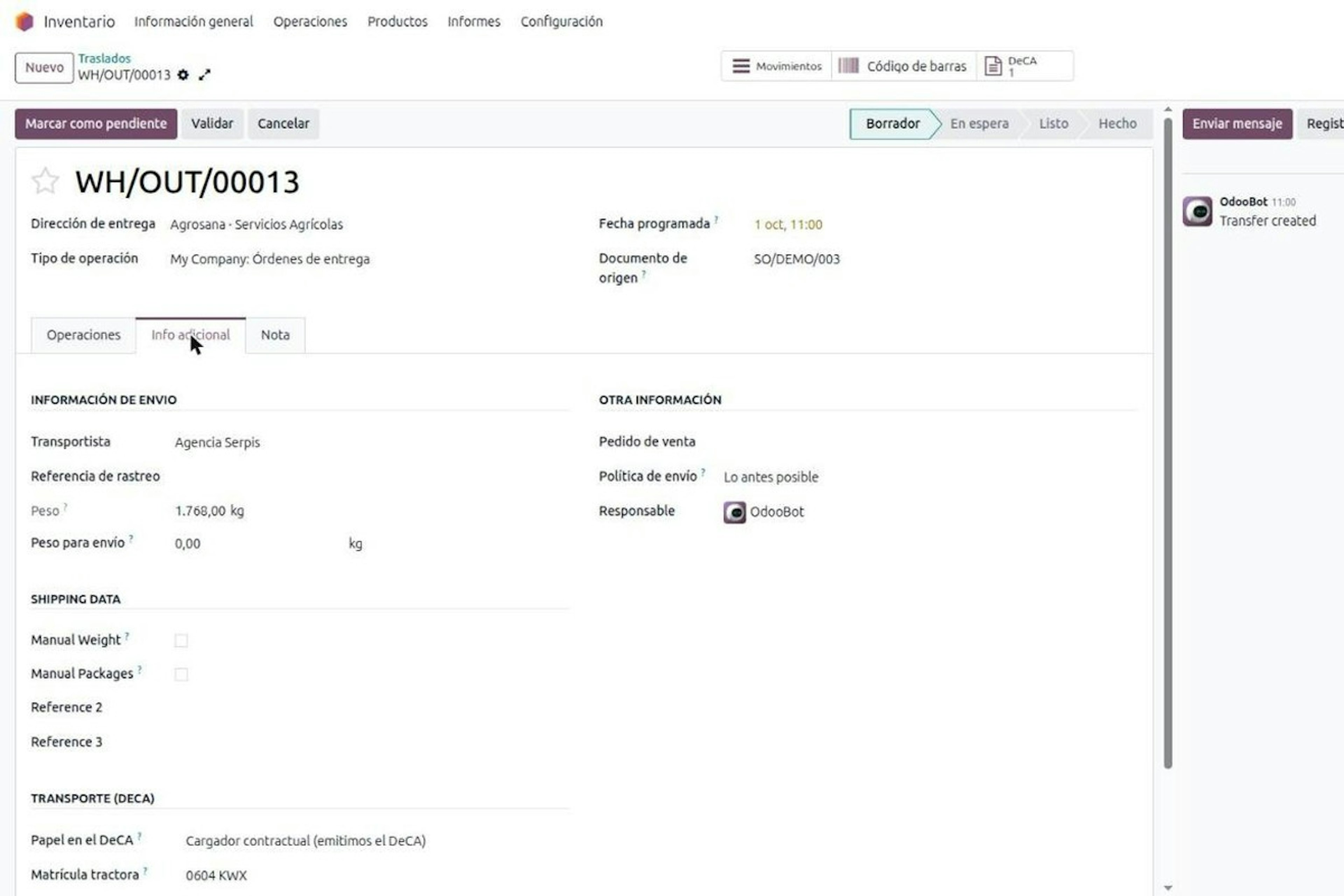
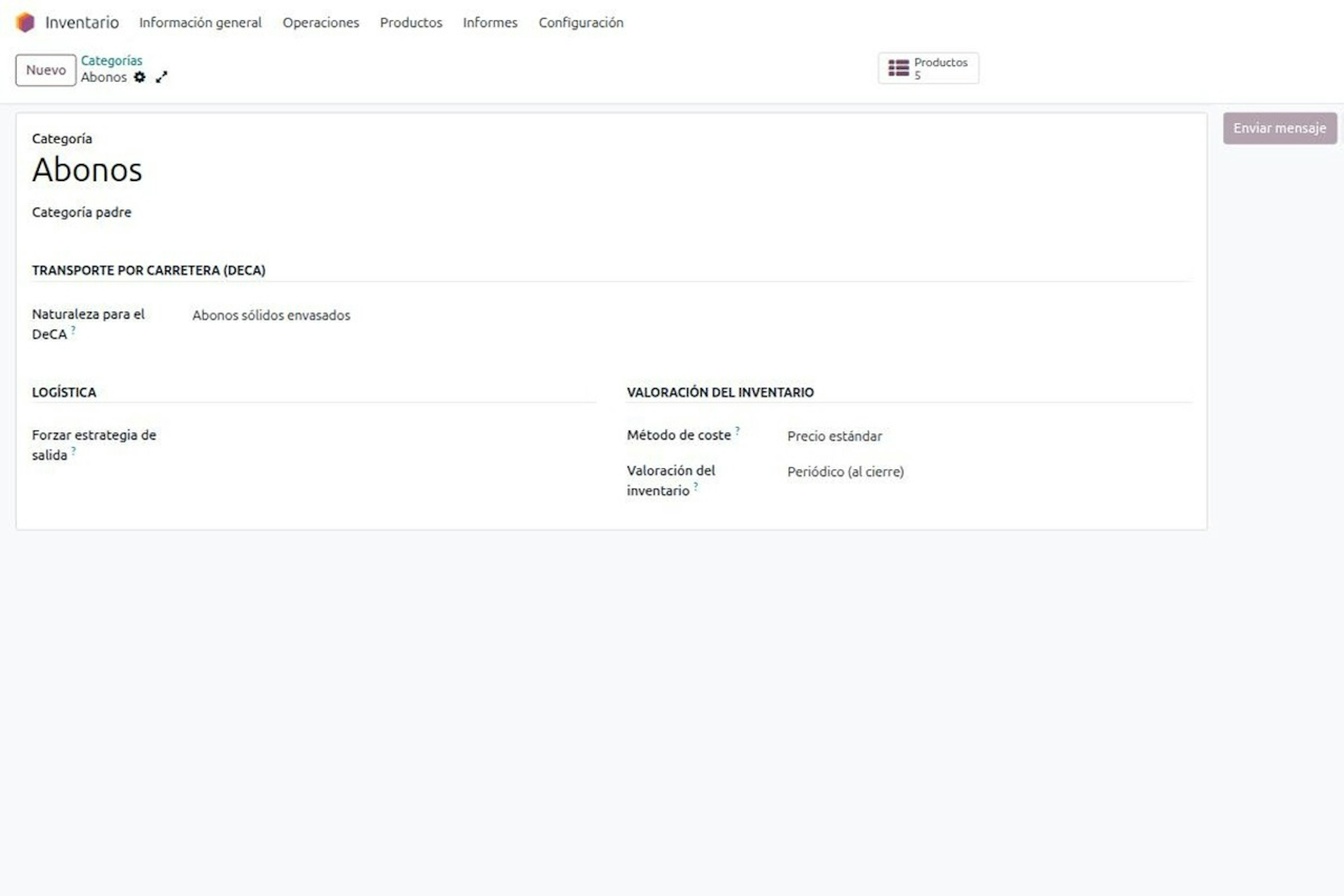
DeCA in Odoo: the transport control document, issued from the delivery order.
The DeCA is mandatory from 5 October 2026. If you run Odoo, you issue it from the delivery order with no separate tool, and the carrier adds the plate from their phone.
8-minute read
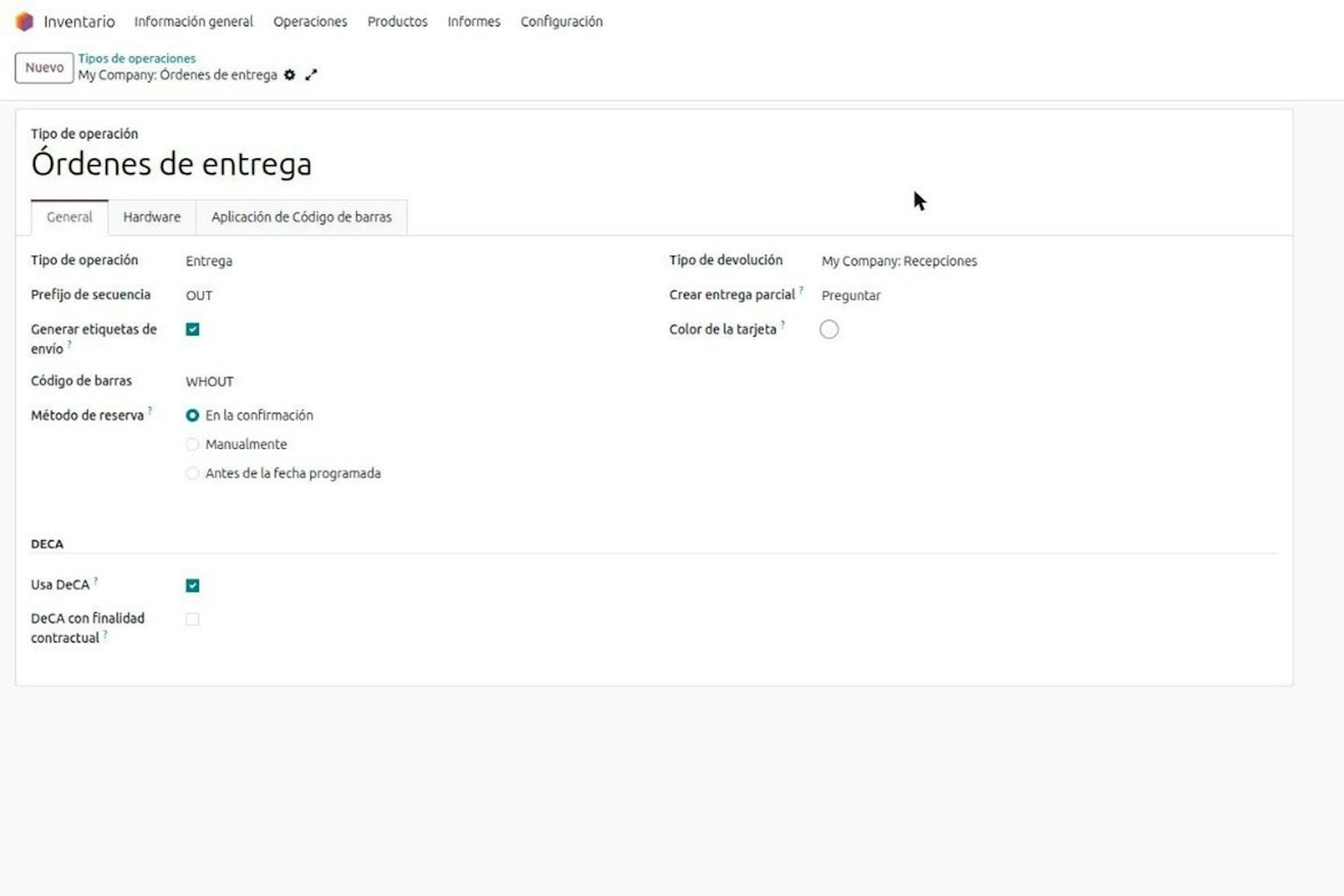
DeCA in Odoo for distribution companies: comply even without trucks.
If you distribute with Odoo and contract the transport, the DeCA binds you even if you own no truck, and you will usually be the one issuing it. What data you supply, why it is already on your delivery order and what daily work looks like.
8-minute read
Who must issue the DeCA: both parties, and in Odoo you decide it on each delivery order.
The DeCA binds both the contractual shipper and the actual carrier, even if you own no trucks. Five questions to find out which one you are and how it shows on each Odoo delivery order.

Odoo Partner in Barcelona
Odoo Partner in Barcelona
Odoo Implementation, Consulting, and Support for Businesses in Barcelona

Odoo Partner in Madrid
Odoo Partner in Madrid
Odoo Implementation, Consulting, and Support for Companies in Madrid

Odoo Partner in Alicante
Odoo Partner in Murcia
Odoo Implementation, Consulting, and Support for Businesses in Murcia

Odoo Partner in Murcia
Odoo Partner in Murcia
Odoo Implementation, Consulting, and Support for Businesses in Murcia

Odoo Consultants
Odoo Consultants
At Dynapps, we’ve been working as Odoo consultants in Spain since before we wrote the first line of configuration code: we understand your business, prioritize what truly adds value, and only then do we design the solution.