What's new in AI in Odoo 20: agents that act and ask permission.
What Luc Nallis, AI Product Owner at Odoo, presented at Odoo Experience 2026, and what we found in a local Odoo 20 database that is not in the release notes.
Odoo 20 is an agentic release. In version 19, AI mostly answered questions and drafted text. In version 20, AI agents search, create and change records in your database, always with the permissions of the user who asks, ask when something is ambiguous and never write without your approval.
This article summarises the talk by Luc Nallis, Product Owner for AI at Odoo, at Odoo Experience 2026 (full video, 17 minutes of talk and questions up to minute 28). We add what we checked in a local Odoo 20 database and what is not in the release notes. For the business view, see also our page on AI in Odoo 20.
The essentials of AI in Odoo 20.
Agents work in the database: they search, create and change records with the user's permissions, ask when in doubt and ask for approval before writing.
Specialised agents per app. In Helpdesk, for example, the agent finds similar tickets and drafts the reply based on the solved ones.
A new agent sets itself up (self-update) and can be started from a scheduled or automated action.
All AI runs on IAP credits. Your own OpenAI and Google keys disappear, and your own provider goes through MCP: Odoo 20 is an MCP server.
Odoo AI, the general agent that works in your database.
Odoo AI is the default agent. It can open files, search, open views and reports, create and change records, generate images and ask questions. There is no “reassign opportunities” function: the agent reads the fields and menus, finds the records and builds the operation itself.
In the demo, the request was “Reassign all my opportunities to Mark”. The agent activated the record search and update skills, checked the user and opportunity fields, read the menus and searched the records. After confirmation, Mitchell Admin's 10 opportunities moved to Marc Demo, as the CRM pipeline then showed.
While it works, the chat shows the steps live (skills activated, fields checked, records searched) instead of the usual message that the AI is thinking. The talk gave two tips. Open a new conversation for each task, so you do not carry over context, and keep in mind that conversations are kept for 30 days after the last message.
What it means for you: many bulk operations that used to justify a custom server action can now be requested in plain language. Changes go through the standard ORM, so the chatter logs what changed, as with any manual edit.
Questions and approvals in one click.
An Odoo 20 agent never writes without approval. When a value is ambiguous, it asks, and its questions, permission requests and suggestions come as buttons. In the demo there was no user called “Mark”, so the agent found Marc Demo and Marc Pinckaers and asked which one to use.
Before writing, it shows the affected records (in the demo, 10 opportunities moving from Mitchell Admin to Marc Demo) and offers three answers:
“Yes, do it”: applies the change.
“Yes, always approve in this chat”: approves this change and the following ones in the conversation.
“No, I want something else”: discards it so you can rephrase.
If the agent reaches its maximum number of tool calls, it also asks for confirmation before going on.
The + menu and creating records from a file.
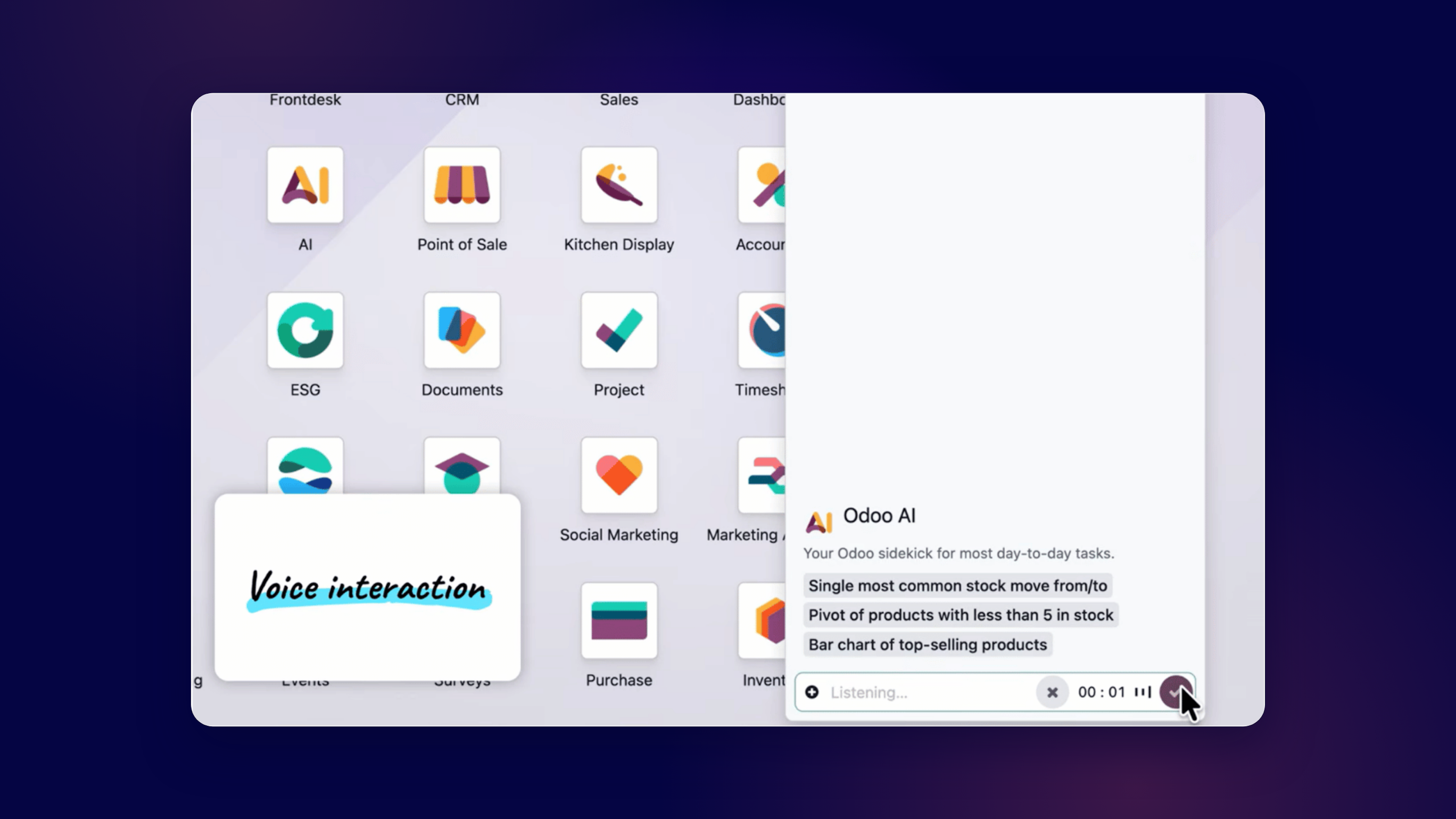
The + button in the chat groups the options for each request:
Attach files or link documents to the chat.
Approve actions automatically, useful for a file format or a prompt you have already tested.
Web search, so the agent can look things up on the internet.
Show steps, with the detail of each one.
Think more, with more reasoning for difficult questions.
The input field also has a microphone to dictate your request. And the agent reads the content of a file, such as a PDF, and uses it with its usual tools. There is no “create projects from a PDF” function either: the file content, your request and the generic tools are enough. That example was shown in the keynote. You can also ask about a file while you preview it.
The specialised agents in each app.
Next to Odoo AI, each app brings its own agents, with their own instructions, skills and tools. The list depends on what you have installed. The demo showed Website Builder, Live Chat AI Agent, Odoo Compliance Assistant, Marketing Campaign Builder and Social Live Chat AI Agent, and Accounting has an Auditor and an Audit Reviewer.
Website: the agent creates or edits pages with Odoo's building blocks, so everything stays editable by hand afterwards.
Accounting: report analysis and audit review, for the accountant who wants a second opinion or the manager who wants to know how the company is doing.
Helpdesk: similar tickets and a suggested reply.
Helpdesk: similar tickets and a reply drafted from the solved ones.
Customers often run into the same problems, and the answer is usually in an old solved ticket. Until now, finding it depended on the support agent's memory or a manual search.
In Odoo 20, the ticket form shows a button with the number of similar tickets and how many are closed. In the demo, a ticket about a software bug showed 9 similar tickets, 2 of them closed. Asked for a solution based on those tickets, the agent pointed to a ticket solved by updating to a specific software version, offered to draft the email and left the draft ready to send.
Worth remembering: the quality of the suggestions depends on how you document solved tickets. The agent reuses the note that describes the solution, so a clear note today means a better automatic reply tomorrow.
How to create your own agent in Odoo 20.
An Odoo 20 agent has five parts:
Instructions: the job description, the role, the reply format and the audience (customers or internal users).
Sources: web pages, Knowledge articles, documents, links and, in Helpdesk, tickets. They can be reprocessed on demand to use their latest version. Other records, such as sales orders, cannot yet be added easily as a source.
Skills and tools: what the agent can do. The “Topics” of Odoo 19 are now called skills.
Engine: IAP by default, or your own provider through MCP.
Triggers: an agent can start from an automated or scheduled action, not only from a message.
Self-update: the agent sets itself up.
Writing good instructions, choosing skills and connecting a scheduled action takes experience that most business users do not have. That is why a new agent starts empty, with three tools (image generation, web search and Self Update), and you only describe the need in plain words. The agent asks for what it is missing and proposes its name, description, role, instructions and skills. Every change goes through your approval.
In the demo, the task was to search every Sunday evening for swimming pools in Belgium that could buy cleaning products, and to create opportunities with an email address or phone number. The agent asked how many per run (5) and set itself up as “Pool Lead Scout”: a sales role, a structured prompt and the skills to search, create and update records and to set up automations.
Triggers: agents started by an automation.
An agent can start from an automated action (a stage change, for example) or from a scheduled action. In the demo, the agent itself proposed a weekly prospecting rule for Sunday at 20:00, ran it and found 5 swimming pools with address, phone number, email and website. It checked for duplicates and created the 5 opportunities in the CRM.
Each automatic run has its own conversation, separate from normal chats: you see how the agent handled each run and can ask for changes based on the errors it found. Because web search is slow, this kind of task fits a recurring action better than a request that blocks your screen.
Worth remembering: a recurring task (prospecting, a weekly check, follow-ups) is set up by describing it, without writing the scheduled action or its prompt by hand. The result is a standard automation rule that you can see and switch off.
Subagents and default prompts.
Two new features that did not come up in the talk. In the local Odoo 20 database we saw that an agent can delegate to other agents: the skills tab includes a subagents section. The accounting agents already use this out of the box, and Odoo AI can call the Auditor, which in turn calls the Audit Reviewer. Confirmations requested by a subagent are shown to you by the agent that called it.
The default prompts (AI > Configuration) define, for a specific use such as drafting an email, which agent is called, on which model, with which context and with which suggested buttons. In version 20, each rule points to a single model instead of a list.
All AI in Odoo 20 runs on IAP credits.
In Odoo 20, all AI services are outsourced to IAP, the same platform you already use for OCR or SMS, and they use IAP credits. Odoo picks the most suitable model for each request (an image model for an image, for example) and can switch to a newer model without you updating anything. The models come from Google and OpenAI, under enterprise contracts that exclude training on customer data.
In the version 20 code, the Odoo 19 settings for using your own OpenAI and Google API keys, choosing the model per agent and the reply style are gone. If you use your own key in version 19, in version 20 you will move to IAP credits or to MCP to keep your provider.
The cost depends on the request, and images, transcriptions, web searches and long texts cost more. The example in the talk was a web page with custom JavaScript and many generated images that cost 40 cents. Odoo announced tools to track usage, although it did not show them, and a new subscription page in the user menu that brings together the subscription and the IAP services.
Odoo 20 as an MCP server for Claude, ChatGPT or your own model.
MCP (Model Context Protocol) is the standard that lets any AI system work with Odoo. In version 20, your database exposes an MCP server on the /mcp route. An external client, whether Claude, ChatGPT or a model hosted in your country or on your own infrastructure, connects and works with the permissions of the user who authorised it.
It is the route for sectors that cannot send their data to Google or OpenAI, and for local models. On Odoo Online, only providers managed by Odoo are available. What we saw in the code:
API key with MCP scope, generated from the user preferences, in the Security tab. It is stored as a credential in the MCP client, never in plain text.
OAuth is already in the code. The talk announced it as “coming soon”, but the Odoo 20 settings already list the clients allowed to obtain tokens: ChatGPT, claude.ai, Claude Code and Grok by default, plus a dynamic registration option for any MCP client.
Server actions exposed to MCP, optionally read-only.
If you want to see a real case of Claude working on Odoo, read how Prima Protección works with Claude.
AI in the other Odoo 20 apps.
This was not demonstrated in the talk, but it is in the Odoo 20 release notes:
Website: the AI assistant picks and edits building blocks, adds images, creates pages, forms and menus, and takes inspiration from other sites or from your products and events. Blocks changed by the AI are marked in the editor. On top of that, a configurable llms.txt file, AI help with the SEO of each page and positioning options in the configuration wizard.
eCommerce: generate product images or change name, price or description from the shop.
Email Marketing and Marketing Automation: generated images and buttons for mailings, and help setting up campaigns.
Social Marketing: drafting posts.
Documents: renaming uploaded files.
ESG: automatic choice of the emission factor.
Live Chat: records mentioned by an agent appear as clickable cards.
What is not in the release notes.
Comparing the code of version 19 and version 20, we found changes you should know about before you migrate:
The AI app moves to a new module: the Odoo 19 module is replaced by a new one that brings self-update, triggers and automation chats. The MCP server is installed automatically with AI.
Topics become skills, and the native skills cannot be edited.
The restriction to sources now applies per conversation, not only on the agent.
About thirty AI bridge modules install themselves with their app: accounting reports, Calendar, Helpdesk, Project, Timesheets, Sales, Purchase, Inventory, Marketing, Website, ESG and more.
What changes for your company with Odoo 20.
Budget: AI no longer depends on your OpenAI or Google subscription. It uses IAP credits, which you plan for like SMS or OCR credits.
Migrating from version 19: if you use your own API key, you will have to move to IAP or MCP, and developments built on topics, model choice or reply style need to be reviewed.
Less custom development: bulk updates, records created from a document or recurring prospecting are requested in plain language or set up as an agent with a trigger.
Control: agents act with the user's permissions, ask for approval before writing and leave standard tracking and automation rules that you can check and switch off.
Sensitive data: if your data must not go to Google or OpenAI, MCP lets you connect the provider or model you choose.
If you are coming from version 19, first read what AI already did in Odoo 19. And if you want to know which agents suit you and how to get your database ready for version 20, our AI and automation team and our Run & evolve Odoo team help you plan it. Talk to our team in Spain.
The most asked questions about AI in Odoo 20.
Yes, through MCP, from any MCP client. Odoo 20 exposes an MCP server, and the client works with the permissions of the user who authorised it. On Odoo Online only Odoo's own providers are available, with Google and OpenAI models chosen per request.
The agent uses the permissions of the user who asks: if the user cannot see payslips, neither can the agent. There is no extra block list on top of those permissions, and the agent does not crawl the whole database; it only reads data when a request needs it.
Odoo has enterprise contracts with OpenAI and Google that exclude training on the data. When data must not go to their servers, the recommended route is MCP with the model you choose, even one hosted in your country.
In version 20, a report comes back as text in the conversation, as a Knowledge article or as an open view; spreadsheets and dashboards are planned for a later version. Odoo AI does not build custom apps either: that requires developing a module.
Yes, in the same way. In the Odoo app you chat with an agent as you would with a colleague, and approve its actions there.
Changes made by an agent trigger the usual field tracking, so they are logged. An administrator can technically access colleagues' chats, but is not part of those conversations by default.
Yes, because the goal is different. AI answers what it is asked, but it does not warn you on its own about a schedule that is slipping, train users or help a team adopt Odoo.
Get your Odoo ready for the AI agents in version 20.
If you use Odoo 19 AI with your own OpenAI or Google key, or have developments built on topics, migrating to version 20 calls for decisions. We help you choose between IAP credits and MCP, review what needs adapting and set up your first agents. We are an Odoo Gold Partner, with 280+ Odoo experts.